
Close Menu
    Facebook X (Twitter) Instagram
    Facebook X (Twitter) Instagram
    KahawatunguKahawatungu
    Button
    • NEWS
    • BUSINESS
    • KNOW YOUR CELEBRITY
    • POLITICS
    • TECHNOLOGY
    • SPORTS
    • HOW-TO
    • WORLD NEWS
    KahawatunguKahawatungu
    HOW-TO

    How to Scan Document Using Canon Printer

    Damaris GatwiriBy Damaris GatwiriApril 21, 2026No Comments2 Mins Read
    Facebook Twitter WhatsApp Telegram Email
    How to Scan a Document on a Canon Printer How to Scan Document Using Canon Printer

    Share
    Facebook Twitter WhatsApp Telegram Pinterest Email Copy Link

    Scanning documents with a Canon printer is an easy and efficient way to create digital copies for storage, sharing, or printing later. Whether you need to scan schoolwork, office files, or personal documents, Canon printers offer user-friendly options to get the job done. Learning how to scan document using Canon printer helps you stay organized and manage your files more effectively. With just a few steps, you can complete the process quickly and accurately.

    1. Table of Contents

      Toggle
      • Prepare the Printer and Document
      • Open the Scanning Tool
      • Adjust Scan Settings
      • Start Scanning the Document
      • Save and Check the File

      Prepare the Printer and Document

    Start by turning on your Canon printer and ensuring it is properly connected to your computer or Wi-Fi network.

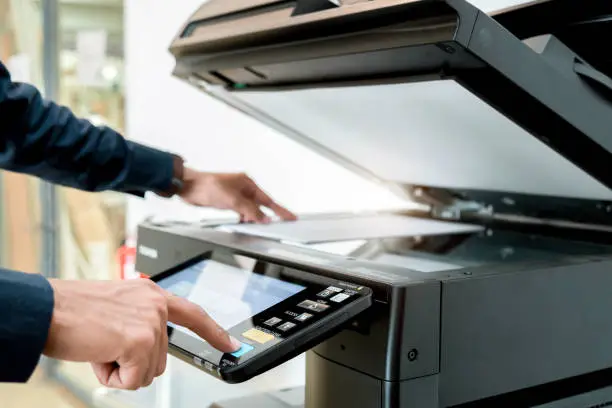
    Place your document face down on the scanner glass or load it into the automatic document feeder if available.

    • Turn on the printer
    • Confirm connection to your device
    • Position the document correctly
    1. Open the Scanning Tool

    On your computer, open the Canon scanning software such as IJ Scan Utility or use your system’s built-in scanning application.

    Select your Canon printer from the list of available devices.

    • Launch the scanning software
    • Choose your printer
    • Select the scan function
    1. Adjust Scan Settings

    Before scanning, customize the settings according to your needs. You can choose the color mode, resolution, and file format.

    Proper settings ensure good quality results.

    • Select color or black and white
    • Set resolution level
    • Choose file type such as PDF or JPEG
    1. Start Scanning the Document

    Click the scan button on your computer or press the scan option on the printer control panel.

    Wait for the process to complete without moving the document.

    • Start the scan process
    • Keep the document still
    • Wait for the scan to finish
    1. Save and Check the File

    After scanning, save the document to your preferred location on your computer or device.

    Open the file to confirm that everything is clear and properly scanned.

    • Save in a known folder
    • Rename the file if needed
    • Review the final scan

    Also Read: How to Scan a Document on a Canon Printer

    Email your news TIPS to Editor@Kahawatungu.com — this is our only official communication channel

    Follow on Facebook Follow on X (Twitter)
    Share. Facebook Twitter WhatsApp LinkedIn Telegram Email
    Damaris Gatwiri

    Damaris Gatwiri is a digital journalist, driven by a profound passion for technology, health, and fashion.

    Related Posts

    How to Screenshot on Dell

    April 21, 2026

    How to Screenshot on Asus Laptop

    April 21, 2026

    How to Screen Record with Sound on iPhone

    April 21, 2026

    Comments are closed.

    Latest Posts

    50 youths arrested in 2024 Finance Bill protests freed for lack of evidence

    April 21, 2026

    How to Screenshot on Dell

    April 21, 2026

    How to Screenshot on Asus Laptop

    April 21, 2026

    How to Screen Record with Sound on iPhone

    April 21, 2026

    How to Scan WiFi QR Code in Android

    April 21, 2026

    How to Scan Document Using Canon Printer

    April 21, 2026

    Kenya Maritime Authority Advertises Wide Range of Job Opportunities

    April 21, 2026

    KNRA Issues New Radiation Screening Directive for All Cargo Entering Kenyan Ports

    April 21, 2026
    Facebook X (Twitter) Instagram Pinterest
    © 2026 Kahawatungu.com. Designed by Okii.

    Type above and press Enter to search. Press Esc to cancel.