
Close Menu
    Facebook X (Twitter) Instagram
    Facebook X (Twitter) Instagram
    KahawatunguKahawatungu
    Button
    • NEWS
    • BUSINESS
    • KNOW YOUR CELEBRITY
    • POLITICS
    • TECHNOLOGY
    • SPORTS
    • HOW-TO
    • WORLD NEWS
    KahawatunguKahawatungu
    HOW-TO

    How to Set Up OpenView Decoder

    Damaris GatwiriBy Damaris GatwiriApril 25, 2026No Comments2 Mins Read
    Facebook Twitter WhatsApp Telegram Email
    How to Set Up OpenView Decoder
    Share
    Facebook Twitter WhatsApp Telegram Pinterest Email Copy Link

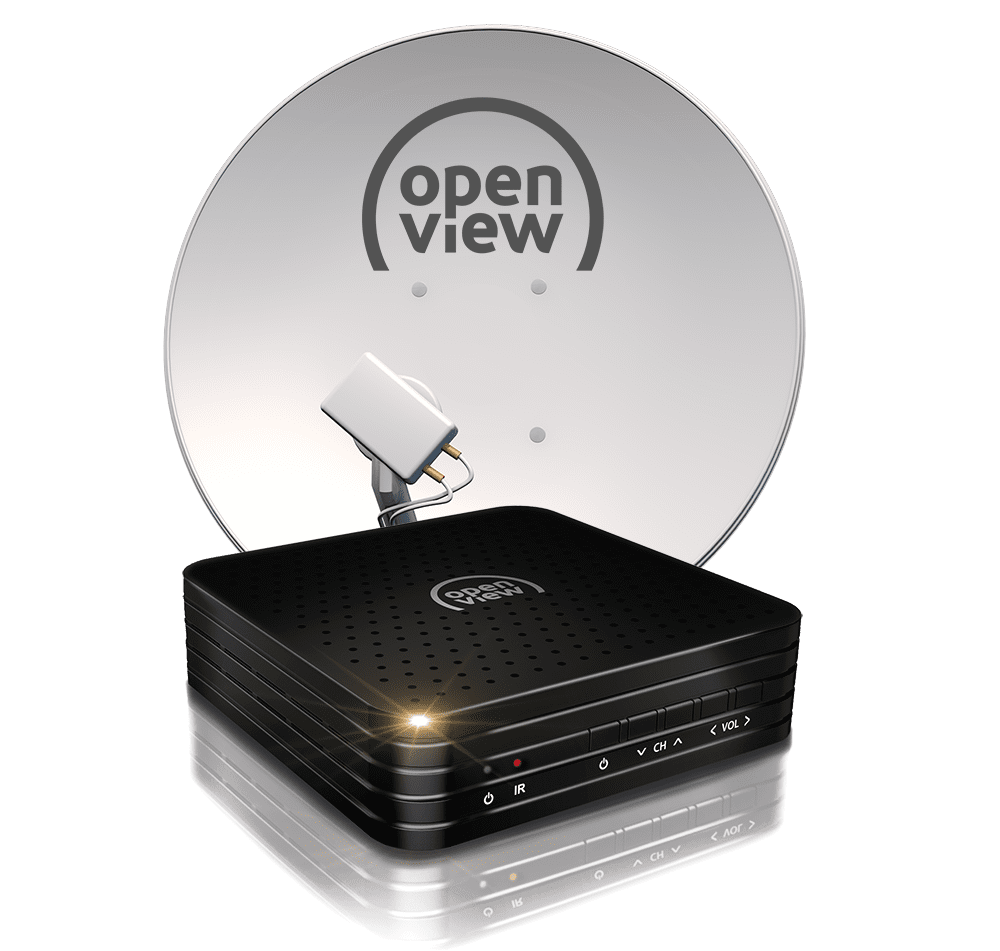
    Setting up an OpenView decoder allows you to access free-to-air channels and enjoy a variety of entertainment at home. The process may seem technical at first, but with the right steps, it becomes straightforward. Learning how to set up OpenView decoder helps you get your system running correctly and ensures a clear signal. With a little attention, you can complete the setup and start watching your favorite channels.

    1. Table of Contents

      Toggle
      • Connect the Satellite Dish Cable
      • Connect the Decoder to Your TV
      • Power On the Devices
      • Follow the On-Screen Setup
      • Check Signal and Save Channels

      Connect the Satellite Dish Cable

    Start by connecting the cable from your satellite dish to the decoder.

    Make sure the connection is secure to avoid signal problems.

    • Locate the LNB cable
    • Connect it to the decoder port
    • Tighten the connection properly
    1. Connect the Decoder to Your TV

    Use an HDMI cable or AV cable to connect the decoder to your television.

    HDMI is recommended for better picture quality.

    • Plug in the HDMI or AV cable
    • Connect to the correct TV port
    • Switch TV input to match
    1. Power On the Devices

    Plug in both the decoder and the TV, then switch them on.

    You should see the OpenView setup screen appear.

    • Connect power cables
    • Turn on the TV and decoder
    • Wait for the setup screen
    1. Follow the On-Screen Setup

    Use your remote control to follow the instructions displayed on the screen.

    This includes selecting language and scanning for channels.

    • Choose preferred language
    • Start channel scan
    • Wait for channels to load
    1. Check Signal and Save Channels

    Once scanning is complete, ensure that channels are clear and working.

    Save the settings to finish the setup.

    • Check signal strength
    • Confirm channels are working
    • Save and exit setup

    Also Read: How to Set Alarm on iPhone

    Email your news TIPS to Editor@Kahawatungu.com — this is our only official communication channel

    Follow on Facebook Follow on X (Twitter)
    Share. Facebook Twitter WhatsApp LinkedIn Telegram Email
    Damaris Gatwiri

    Damaris Gatwiri is a digital journalist, driven by a profound passion for technology, health, and fashion.

    Related Posts

    How to Be a Model in South Africa

    June 29, 2026

    How to Be a Millionaire in South Africa

    June 29, 2026

    How to Be an Actor in South Africa

    June 29, 2026

    Comments are closed.

    Latest Posts

    Two petitions filed to challenge implementation vehicle inspection rules by NTSA

    June 29, 2026

    Activists raise alarm over alleged crisis at Kisii Teaching and Referral Hospital

    June 29, 2026

    Kenya, Rwanda Sign G2G Agreement to Open Northern Corridor for Rwanda’s Fuel Imports

    June 29, 2026

    Abdi Mohamed appointed I&M Bank Kenya CEO after Absa exit

    June 29, 2026

    South Korea unveils $880bn chip and AI investment plan

    June 29, 2026

    The Good Life actress Dame Penelope Keith dies aged 86

    June 29, 2026

    Five dead following shooting at youth centre in Stade, northern Germany

    June 29, 2026

    Michael Jackson movie becomes highest-grossing biopic of all time

    June 29, 2026
    Facebook X (Twitter) Instagram Pinterest
    © 2026 Kahawatungu.com. Designed by Okii.

    Type above and press Enter to search. Press Esc to cancel.