
Close Menu
    Facebook X (Twitter) Instagram
    Facebook X (Twitter) Instagram
    KahawatunguKahawatungu
    Button
    • NEWS
    • BUSINESS
    • KNOW YOUR CELEBRITY
    • POLITICS
    • TECHNOLOGY
    • SPORTS
    • HOW-TO
    • WORLD NEWS
    KahawatunguKahawatungu
    HOW-TO

    How to Share Apple Music with Family

    Damaris GatwiriBy Damaris GatwiriApril 27, 2026No Comments2 Mins Read
    Facebook Twitter WhatsApp Telegram Email
    How to Share Apple Music with Family
    Share
    Facebook Twitter WhatsApp Telegram Pinterest Email Copy Link

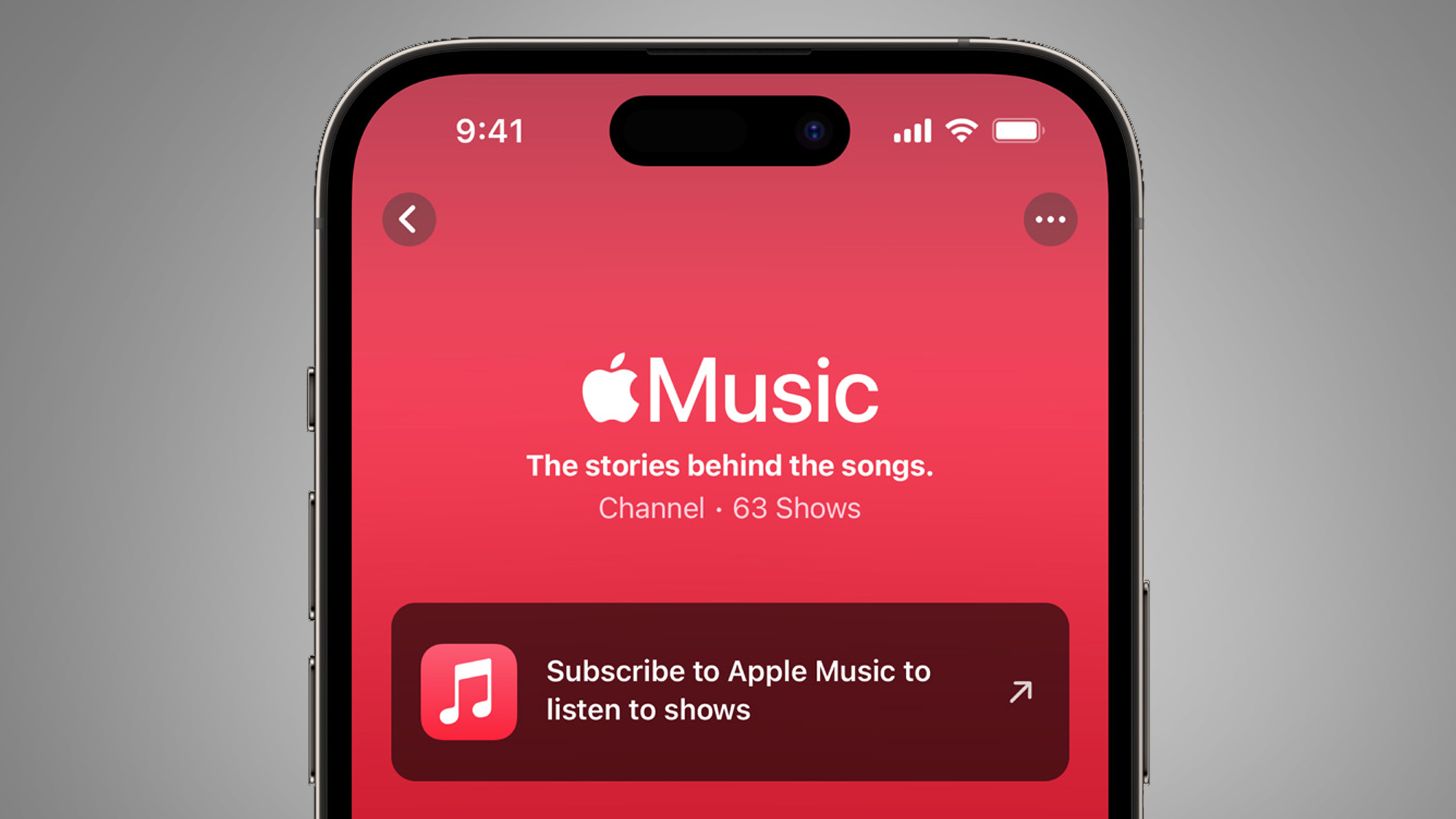
    Sharing Apple Music with your family is a great way to enjoy music together while saving on subscription costs. Apple offers a Family Sharing feature that allows multiple people to access Apple Music under one plan. Each family member gets their own personal account, playlists, and recommendations. Learning how to share Apple Music with family helps you manage subscriptions efficiently and keep everyone connected to their favorite music. With a few simple steps, you can set it up and start sharing easily.

    1. Table of Contents

      Toggle
      • Set Up Family Sharing
      • Add Family Members
      • Subscribe to Apple Music Family Plan
      • Enable Music Sharing
      • Manage Family Settings

      Set Up Family Sharing

    To begin, you need to enable Family Sharing on your Apple device.

    Go to Settings, tap your name, and select “Family Sharing” to get started.

    • Open Settings
    • Tap your Apple ID
    • Select Family Sharing
    1. Add Family Members

    Invite your family members to join your Family Sharing group.

    You can add them using their Apple IDs.

    • Tap “Add Family Member”
    • Enter their Apple ID
    • Send the invitation
    1. Subscribe to Apple Music Family Plan

    To share Apple Music, you need to have a Family Plan subscription.

    This plan allows multiple users to access Apple Music.

    • Choose Apple Music Family Plan
    • Confirm subscription
    • Ensure it is active
    1. Enable Music Sharing

    Once your family group is set up, Apple Music sharing is automatically enabled.

    Each member can now access Apple Music on their own devices.

    • Open Apple Music
    • Sign in with Apple ID
    • Start using the service
    1. Manage Family Settings

    You can manage your family group, remove members, or update settings at any time.

    This helps keep everything organized.

    • Review family members
    • Update settings if needed
    • Manage subscriptions

    Also Read: How to Set Up OpenView Decoder

    Email your news TIPS to Editor@Kahawatungu.com — this is our only official communication channel

    Follow on Facebook Follow on X (Twitter)
    Share. Facebook Twitter WhatsApp LinkedIn Telegram Email
    Damaris Gatwiri

    Damaris Gatwiri is a digital journalist, driven by a profound passion for technology, health, and fashion.

    Related Posts

    How to Split a Table in Word

    April 27, 2026

    How to Soften Leather Shoes

    April 27, 2026

    How to Sign Out of YouTube

    April 27, 2026

    Comments are closed.

    Latest Posts

    DIG Lagat announces upgrade of Kwa Kamari Police Station in Kitui after fatal attack

    April 27, 2026

    Bianca Censori Turns Heads in Bold Outfit During Date Night With Kanye West in Los Angeles (Photos)

    April 27, 2026

    Nedra Talley Ross, Last Surviving Member of The Ronettes, Dies at 80

    April 27, 2026

    Two men found murdered in separate incidents in Nairobi

    April 27, 2026

    How to Split a Table in Word

    April 27, 2026

    How to Soften Leather Shoes

    April 27, 2026

    How to Sign Out of YouTube

    April 27, 2026

    How to Share Apps via Bluetooth

    April 27, 2026
    Facebook X (Twitter) Instagram Pinterest
    © 2026 Kahawatungu.com. Designed by Okii.

    Type above and press Enter to search. Press Esc to cancel.