
Close Menu
    Facebook X (Twitter) Instagram
    Facebook X (Twitter) Instagram
    KahawatunguKahawatungu
    Button
    • NEWS
    • BUSINESS
    • KNOW YOUR CELEBRITY
    • POLITICS
    • TECHNOLOGY
    • SPORTS
    • HOW-TO
    • WORLD NEWS
    KahawatunguKahawatungu
    HOW-TO

    How to Scan WiFi QR Code in Android

    Damaris GatwiriBy Damaris GatwiriApril 21, 2026No Comments2 Mins Read
    Facebook Twitter WhatsApp Telegram Email
    How to Scan WiFi QR Code in Android
    Share
    Facebook Twitter WhatsApp Telegram Pinterest Email Copy Link

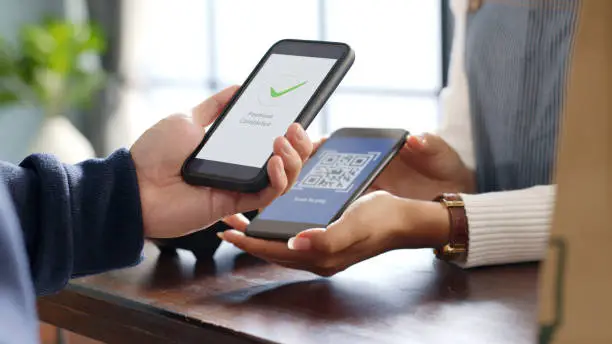
    Connecting to WiFi has become easier with the use of QR codes, which allow you to join a network without typing a password. This feature is especially useful when sharing internet access quickly and securely. Learning how to scan WiFi QR code in Android helps you connect to networks in seconds without hassle. With just a few simple steps, you can scan and connect effortlessly using your smartphone.

    1. Table of Contents

      Toggle
      • Open Your Camera App
      • Scan the QR Code
      • Connect to the WiFi Network
      • Use Google Lens if Needed
      • Check Connection Settings

      Open Your Camera App

    Most modern Android phones come with a built-in QR code scanner in the camera app.

    Simply open your camera and point it at the WiFi QR code.

    • Launch the camera app
    • Ensure the QR code is clearly visible
    • Hold the phone steady
    1. Scan the QR Code

    Once the camera detects the QR code, a notification or pop-up will appear on your screen.

    Tap on the notification to proceed.

    • Wait for the code to be recognized
    • Tap the prompt that appears
    • Avoid moving the camera too quickly
    1. Connect to the WiFi Network

    After tapping the notification, your phone will automatically display the WiFi details.

    Select the option to connect, and your device will join the network instantly.

    • Tap “Connect” when prompted
    • Wait for the connection to complete
    • Confirm you are connected
    1. Use Google Lens if Needed

    If your camera does not scan QR codes automatically, you can use Google Lens.

    Open Google Lens through your camera or Google app and scan the QR code.

    • Open Google Lens
    • Point it at the QR code
    • Tap to connect to WiFi
    1. Check Connection Settings

    After scanning, verify that your phone is connected to the correct WiFi network.

    You can check this in your WiFi settings.

    • Open WiFi settings
    • Confirm the connected network
    • Test your internet connection

    Also Read: How to Scan a Document on a Canon Printer

    Stay connected via Google News
    Follow us for the latest news updates and guides.
    Add as preferred source on Google

    Email your news TIPS to Editor@Kahawatungu.com — this is our only official communication channel

    Follow on Facebook Follow on X (Twitter)
    Share. Facebook Twitter WhatsApp LinkedIn Telegram Email
    Damaris Gatwiri

    Damaris Gatwiri is a digital journalist, driven by a profound passion for technology, health, and fashion.

    Related Posts

    How to Install Adobe Photoshop on a Laptop

    November 14, 2026

    How to Install SPSS on a Laptop

    November 14, 2026

    How to Install Dev-C++ in a Laptop

    November 14, 2026

    Comments are closed.

    Latest Posts

    Three More Arrested as Police Recover Suspected Stolen Property in Kisumu

    November 15, 2026

    Man Arrested for Defrauding Jobseekers Sh1.1 Million in Fake KDF Recruitment Scheme

    November 15, 2026

    Welder killed by flying truck tyre rim in Mwingi garage

    November 15, 2026

    Police investigate murder after body of man found in well in Juja

    November 15, 2026

    Man Arrested Nearly Two Years After Murder of Rumuruti Police Inspector

    November 15, 2026

    Four Arrested, Stolen Phones Recovered During Maseno University Graduation

    November 15, 2026

    Police Arrest Suspect, Recover 29 Suspected Stolen Phones in Nanyuki

    November 15, 2026

    19-Year-Old Arrested Over Violent Robbery Targeting Lorry Workers in Kisumu

    November 15, 2026
    Facebook X (Twitter) Instagram Pinterest
    © 2026 Kahawatungu.com. Designed by Okii.

    Type above and press Enter to search. Press Esc to cancel.