


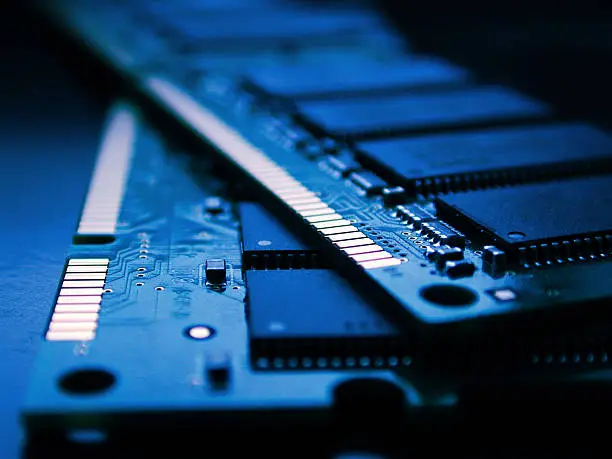
Learning how to improve RAM in laptop can help your computer run more smoothly, especially when you frequently use several applications, browser tabs or demanding programs at the same time. RAM is the short-term memory your laptop uses to keep applications and files readily available. Adding more RAM can improve multitasking, while managing memory usage can help an existing laptop perform better.
-
Check How Much RAM Your Laptop Has
Before making any changes, check how much RAM is currently installed.
On Windows, press Ctrl + Shift + Esc to open Task Manager and select Performance > Memory. You can see the total RAM, current usage and other memory information.
- Check installed RAM
- Check how much memory is being used
- Note the available memory
-
Close Programs You Are Not Using
Running many applications simultaneously can consume a large amount of RAM.
Close programs you no longer need, particularly demanding applications such as video editors, games and large software programs.
You can also check Task Manager to identify applications using significant amounts of memory.
-
Reduce the Number of Browser Tabs
Web browsers can use considerable memory when many tabs are open.
Close tabs you are no longer using and remove unnecessary browser extensions. If you regularly work with many tabs, upgrading your laptop’s RAM may provide a more noticeable improvement.
-
Disable Unnecessary Startup Apps
Some applications automatically start when you turn on your laptop and continue running in the background.
Open Task Manager > Startup apps and disable programs that you do not need to launch automatically.
Microsoft notes that startup applications can affect both startup speed and overall system performance.
-
Stop Unnecessary Background Applications
Some applications continue running even when you are not actively using them.
Review your installed applications and background permissions and turn off unnecessary background activity where appropriate.
This can free memory for the programs you actually need.
-
Restart Your Laptop Regularly
Restarting your laptop clears active memory and gives Windows a fresh session.
If your laptop becomes slower after running for a long period, save your work and restart it.
This is a simple way to clear temporary memory usage without changing your hardware.
-
Keep Windows Updated
Windows updates can include performance improvements, fixes and updated drivers.
Go to Settings > Windows Update and check for available updates.
Keeping the operating system updated can help maintain overall system performance.
-
Free Up Storage Space
Although storage is different from RAM, having very little free storage can affect overall laptop performance.
Use Settings > System > Storage to remove unnecessary temporary files and unused applications.
Windows provides Storage Sense and other cleanup tools for this purpose.
-
Consider Increasing the Physical RAM
If your laptop has too little RAM for the programs you use, installing additional RAM can provide a more significant improvement than software adjustments.
However, not every laptop allows RAM to be upgraded. Some models have memory soldered directly to the motherboard.
Before buying RAM, check your laptop model’s specifications to determine whether the memory is upgradeable and what type and capacity it supports.
-
Consider Your RAM Capacity
The amount of RAM you need depends on how you use your laptop.
Microsoft currently recommends 8 GB as a suitable amount for longer-term general use, while 16 GB or more may be appropriate for photo editing, video editing and other demanding workloads.
For example:
- 4 GB: Basic tasks with limited multitasking
- 8 GB: Everyday browsing, documents and streaming
- 16 GB: More demanding multitasking and creative work
- 32 GB or more: Heavier professional workloads and specialized applications
-
Use Virtual Memory When Necessary
Windows can use part of your storage drive as virtual memory when physical RAM is insufficient.
Virtual memory is slower than actual RAM, so it should not be considered a replacement for a physical RAM upgrade. Microsoft notes that Windows’ default virtual-memory settings generally work well in most situations.
Avoid changing advanced virtual-memory settings unless you understand the consequences.
-
Check for Malware
Malware can consume system resources and make a laptop feel slow.
Run a Windows Security scan if you notice unusually high memory usage or unexplained performance problems.
Microsoft recommends using Windows Security’s virus and threat protection tools to check for malware.
-
Upgrade the Laptop if Necessary
If your laptop has limited or non-upgradeable RAM and remains slow despite optimization, hardware replacement may eventually be necessary.
An SSD upgrade can also improve general responsiveness if the laptop still uses a traditional hard disk, although an SSD does not increase the amount of RAM.
Also Read: How to Pin a Number on TikTok LIVE

Email your news TIPS to Editor@Kahawatungu.com — this is our only official communication channel
