


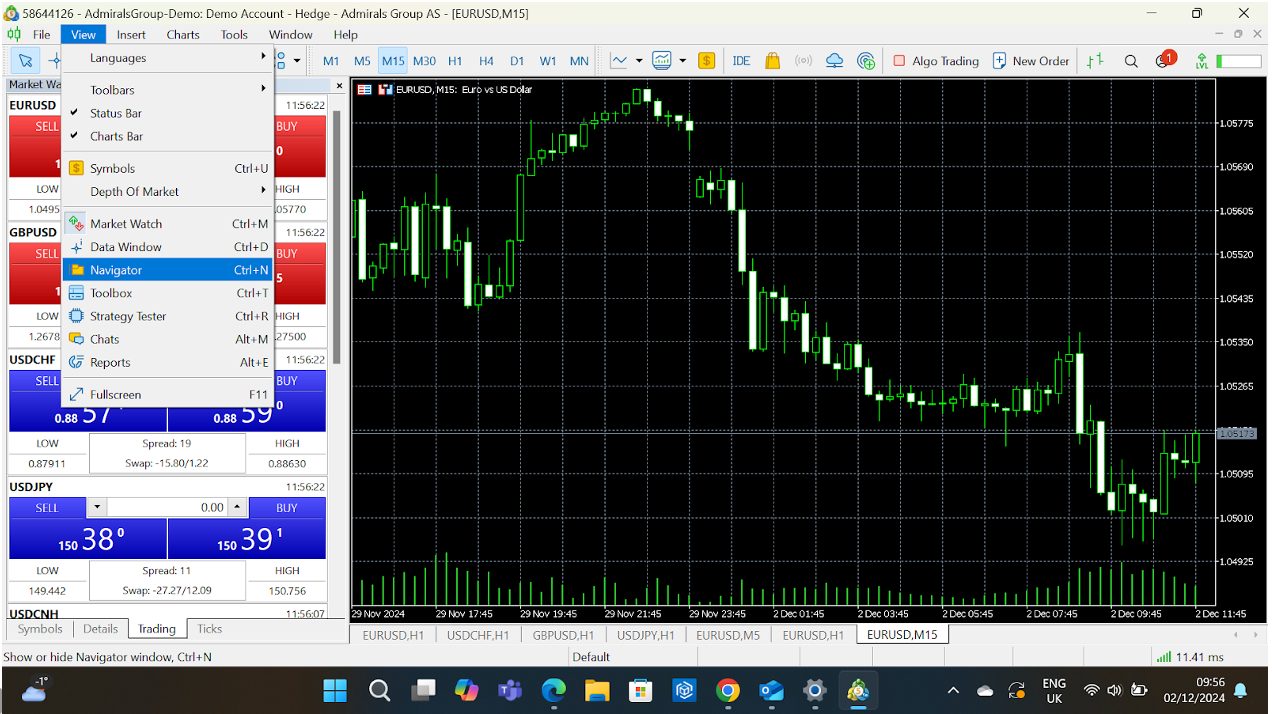
MetaTrader 5 (MT5) is a powerful trading platform used for forex, stocks, and commodities. It provides advanced tools for market analysis, automated trading, and order management. Whether you are a beginner or an experienced trader, learning how to use MT5 can help you trade more effectively and make informed financial decisions.
- Download and Install MT5
Visit the official MetaTrader 5 website or your broker’s site and download the platform for your device. Install the software on your computer or mobile phone and launch it.
- Create or Log in to Your Account
Open MT5 and log in using your broker’s account details. If you don’t have an account, register with a broker that supports MT5 and set up your trading credentials.
- Understand the Interface
Familiarise yourself with the main sections: the Market Watch window, the Navigator panel, the Chart window, and the Toolbox. Each area provides tools for monitoring and managing trades.
- Add Trading Instruments
In the Market Watch window, right-click and choose “Symbols” to add forex pairs, stocks, or commodities. Select the instruments you want to trade and display them on your screen.
- Open a Chart
Double-click an instrument in Market Watch to open its chart. You can customise the chart style (candlestick, line, or bar), apply technical indicators, and adjust timeframes for better analysis.
- Place a Trade
Click the “New Order” button or right-click on a chart to open the order panel. Enter trade details such as lot size, stop-loss, take-profit, and order type (market or pending). Click “Buy” or “Sell” to execute.
- Monitor and Manage Trades
Use the Toolbox at the bottom to check open positions, profit and loss, and trade history. You can also adjust or close trades directly from this section.
- Use Expert Advisors (EAs)
MT5 allows automated trading with Expert Advisors. You can install or create EAs to execute strategies automatically, saving time and removing emotional decision-making.
- Practice with a Demo Account
Before trading real money, use a demo account to practice. This helps you learn the platform’s features without risking your funds.
Also Read: How To Use Gautrain
Email your news TIPS to Editor@Kahawatungu.com — this is our only official communication channel
