


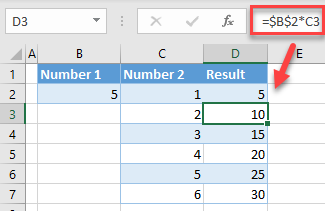
Locking a cell in an Excel formula means keeping a specific cell reference fixed, even when you copy or drag the formula to other cells. This is done using absolute referencing. It helps maintain consistency when you need one constant value to be used in multiple calculations without changing. Here is how to lock a cell in Excel formula.
- Understand Cell References
In Excel, there are two main types of cell references:
- Relative reference (e.g., A1): changes when the formula is copied.
- Absolute reference (e.g., $A$1): remains fixed no matter where the formula is copied.
Locking a cell involves converting a relative reference into an absolute one.
- Use the Dollar Sign ($)
To lock a cell in your formula, add a dollar sign before the column letter and row number. For example:
- $A$1 locks both the column and the row
- A$1 locks only the row
- $A1 locks only the column
This tells Excel to always refer to that exact cell, no matter where the formula is moved.
- Apply in a Formula
Suppose you want to multiply values in column A by a constant in cell B1. You would write:
=A2*$B$1
When you copy this formula down the column, A2 will change to A3, A4, etc., but B1 remains locked, ensuring the same value is used in each row.
- Use the F4 Key for Quick Locking
After selecting or typing a cell reference in a formula, press the F4 key (on Windows) to quickly add dollar signs. Pressing F4 repeatedly toggles between different types of references:
- Press once: $A$1
- Press twice: A$1
- Press three times: $A1
- Press four times: back to A1
This shortcut saves time when creating complex formulas.
- Confirm with Enter
Once you have entered your formula with the locked cell reference, press Enter to apply it. When copied or dragged across cells, Excel will preserve the locked reference as intended. - Use in Practical Scenarios
Locking cells is useful in financial models, grade calculations, or any spreadsheet where a constant value (like tax rate or exchange rate) is applied across multiple rows.
Also Read: How To Grow Strawberries In Pots

Email your news TIPS to Editor@Kahawatungu.com — this is our only official communication channel
