


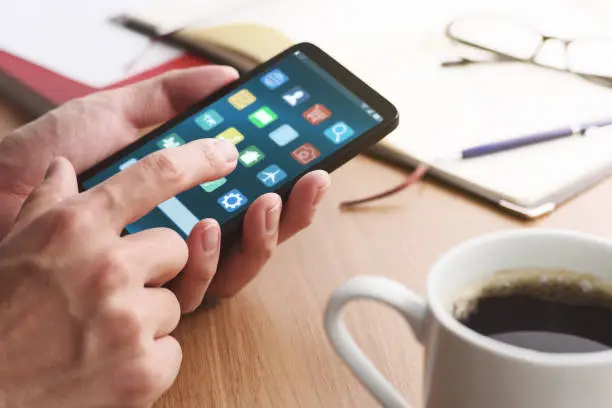
Knowing how to change app icons allows you to personalise your smartphone and create a unique home screen that matches your style. Whether you want a minimalist look, colourful icons, or themed designs, both Android and iPhone offer ways to customise app icons. While the exact steps vary depending on your device, the process is generally simple and only takes a few minutes. With the right tools, you can completely transform the appearance of your home screen.
-
Choose the Icons You Want to Use
Start by selecting the app icons you want for your home screen.
You can download icon packs from app stores or use images that you have created or saved on your device.
- Choose an icon pack
- Download your preferred icons
- Save the icons to your device
-
Change App Icons on Android
Most Android phones allow you to change app icons using a launcher or built-in theme settings.
Install a compatible launcher if your phone does not support icon changes by default, then apply your chosen icon pack.
- Install a launcher if required
- Open launcher settings
- Apply the icon pack
-
Change App Icons on iPhone
On an iPhone, you can use the Shortcuts app to create custom app icons.
Create a new shortcut, choose the app you want to open, assign a custom image as the icon, and add the shortcut to your Home Screen.
- Open the Shortcuts app
- Create a new shortcut
- Add the shortcut to the Home Screen
-
Organise Your Home Screen
After changing your app icons, arrange them to match your preferred layout.
You can group similar apps together, use folders, or organise them according to colour or theme.
- Rearrange your icons
- Create folders if needed
- Organise by theme or category
-
Update Icons Whenever You Want
You can change your app icons again at any time by selecting a different icon pack or creating new shortcuts.
Experiment with different themes until you find a design that suits your personal style.
- Try different icon packs
- Update your theme regularly
- Customise your home screen whenever desired
Also Read: How to Cancel an IFA Debit Order
Email your news TIPS to Editor@Kahawatungu.com — this is our only official communication channel
